Monday, January 13, 2014

Microsoft: Adding IntelliSense for jQuery in WebMatrix and Microsoft development tools.

I had the opportunity to work with HTML5 APIs and jQuery development inside Microsoft WebMatrix, it is a light IDE and installed with libraries and extensions that made development richer.

In order for WebMatrix to really be a useful as an editor for jQuery, I really wanted to have IntelliSense support for jQuery. However, the annoying issue is that WebMatrix does not have a built-in IntelliSense support for jQuery in and other JavaScript tools.

As jQuery is one of our focuses here in this post, adding IntelliSense for jQuery is extremely easy, therefor I am going to explain how to add the IntelliSense support for jQuery into WebMatrix or other Microsoft development tools in an easy step.

The idea
---------------
Microsoft's developer tools like WebMatrix, Visual studio 2008 SP1 and upper versions, allow you to add IntelliSense for any JavaScript library by adding a Reference Directives (.vsdoc JavaScript file) to your page.

The files that you would use for your reference directives are available at the same Microsoft CDN where you can get the jQuery library from at:
http://www.asp.net/ajaxlibrary/cdn.ashx

How to do it
-------------------
In order to use IntelliSense for jQuery, you need to download the appropriate jquery-n.n.n-vsdoc.js file for the version of jQuery that you are using and store that in your page.
  1. Your project structure should be as the following


  2. Add the reference directive (jquery-2.0.3-vsdoc.js) into your html page as the following


  3. You also can add it to you JavaScript library file, to get the power of IntelliSense for jQuery as the following


Result
-------------
Now you have added the library reference directives for jQuery version, into your IDE inside your page write jquery call by just jQuery or $ you will get:


Hit the .(dot) and you will also get


Conclusion
-----------------

Also as you notice in the previous pictures, the reference not just get the IntelliSense but more than this, it gives you the power of getting the methods documentation and parameters explanations on the fly, or by hover over the method after writing it.

Thanks to Microsoft reference directives.

References
----------------
1- Microsoft Ajax Content Delivery Network.

Friday, December 27, 2013

JSF: Passing parameters to JSF action methods from page directly, a nice feature of JavaEE 6+

One of the JSF 2+ nice features presented in Java enterprise edition JavaEE 6+, is that you can pass parameters to any action components action method like commandButton or commandLink components.
Based on that you can minimize the number of methods inside your managed bean.

In addition, to minimize many parameters to set inside the bean to be used by action to decide navigation logic, which reduce memory consumption if your beans in scopes greater than request scope.
How it works:
  1. Open your favorite IDE, I am going to use Netbeans 7.4.1. (Use any IDE that supports JavaEE 6 or 7).

  2. Create web project.
    File --> New Project --> Java Web (left pan) --> Web Application (right pan) --> Next.

  3. Name it whatever you like (JSFeatures for me)--> Next --> Server Glassfish4 --> Java EE 7 Web profile --> Context path "/JSFeatures" --> Next.


  4. From frameworks chose "Java Server Faces" --> Finish.


  5. You should have project structure like this:


  6. Right click on the JSFeatures project --> new "JSF Managed Bean". and its name and config like this:

  7. With the bean opened in the editor page, copy and paste the following code after package statement:
  8. Open the index.xhtml which is generated by default, and copy the following code and past it in your file:

  9. Right click on the index.xhtml then --> Run; you should see something like this:

  10. Click submit button and watch h:outputText value, its value should be "Hi there I am an action method."

  11. Now everything is working fine. Let us do the actual work I need to demonstrate.

  12. Change addNumbers() method signature to the following (without restarting the application server):
    1. Bean method:

    2. Then your button call to:

    3. Press the button and output text value should be:

  13. 13. Do it one more time:
    1. Bean method:

    2. Then your button call to:

    3. Press the button and output text value should be:

Note: the parameter could be with different parameters type not expected to be the same type, also method could return a value for navigation to other pages, in this example it returns null to be on the same page.

I liked this feature too much enjoy it, very helpful and handy, and happy coding.

References:
1- JavaEE 7 tutorial (7.5 Navigation Model).

Tuesday, December 24, 2013

Oracle: ORA-00600 raised when creating triggers on 11g using JDeveloper or SQL Developer

While I was preparing my database migration script for my project to satisfy specific version requirements, and as usual test it against database before submitting it to QA team. I got the following error with each "CREATE TRIGGER":

It was a very strange behaviour for me, and I contacted my DB team to get help, and logged a support on Oracle Metalink. Because it always works previously on 10g but my new environment is 11g.

It is a bug in oracle 11.2.0.2g and there are bugs logged for this issue:
  1. Bug 10174125
  2. Bug 10094416 is fixed in 12.1 release.

Workaround:

At the beginning of my script, I have added the following alter line:

And at the end of the script add the following alter:


Monday, December 9, 2013

Android: Boost up the Android emulator speed up to 400% on Intel based architecture

In my previous post How to inject Android compiled .apk package into its Device Emulator from the command line. I have demonstrated how to add your compiled .apk file to android emulator, from command line with adb command, included in ADT platform tools.

One of my friends commented:
"Are u really using the emulator.....it is very slow. Even on the fastest machines. I always use a real device."
From this comment, I have made some R&D about this problem, and especially this tools are developed by Google ;), and indeed they know about this symptom.

Also testing on real devices are very costly and time consuming process, as we have a variety of devices varies from multiple screen sizes, which are one of Android developer's worst nightmares. There are a huge number of different screen configurations of Android devices.


The great thing about using an emulator for development is that it gives you an opportunity to develop applications without having a real Android device. The default Android emulator comes together with the Android SDK and can be found in the "tools" folder.

So far so good, we have our coffee, but can we drink it? The answer comes about 5 minutes after we hit the "Launch" button. Go grab a coffee. Have breakfast. Come back. Wait another 5 minutes. Maybe even more.

In meantime, the default Android emulator is notoriously slow. So, what should we do? That is easy - start using a properly fast Android emulator.

Emulation vs. Simulation

If you are using Apple iPhone simulators, you will find that the iPhone simulator does not have the same issue as the Android Emulator.

One of the reasons for this is that it does not run a “real emulator”, because the CPU instruction used by the iPhone simulator is the same as the one used by the host (x86).

On the contrary, Android Emulator emulates a real ARM processor on top of an x86 processor. This is a lot of overhead.

At least for quick test and demonstration purposes, I do not need to emulate an ARM processor; I just need to be able to run Android and my application. The main objective before releasing an application is to find bugs and design imperfections.

Okay, it is slow. Then what can we do about it?


Let us go through steps to solve the slowness problem of Android emulator;

  1. First, let us delegate the rendering process to host GPU instead of overhead our CPU by this process, it will make it happy. Do it by checking "Use Host GPU" checkbox in AVD's edit window.

    The screen should now look better and be more responsive. That is because the CPU is happy to not dealing with the tedious work of doing rendering anymore. However, that is still not fast enough.


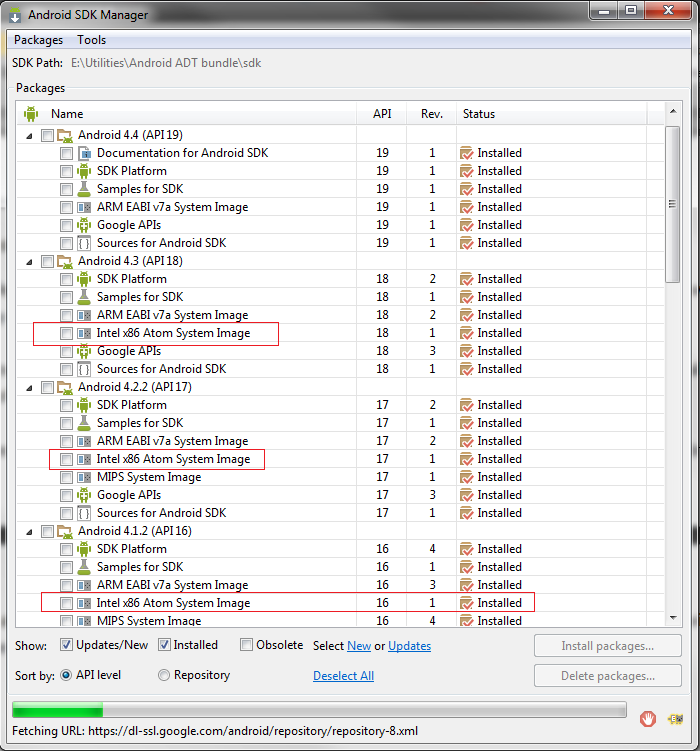
  2. Second we need to download Intel Atom (x86) system image for each Android version you need to use for testing.

  3. Third, download Intel x86 Emulator Accelerator (HAXM, for Mac and Windows only). This will enable virtual machine acceleration capabilities of the Intel CPU, from Android SDK manager --> tools. Or install it from Intel site.

  4. The SDK only copies the Intel HAXM executable on your machine, and it is up to you to install the executable.

    To install the Intel HAXM executable, search your hard drive for IntelHaxm.exe (or IntelHAXM.dmg on Mac OS X). If you left everything to default, it should be located at %Android_HOME%\sdk\extras\Intel\Hardware_Accelerated_Execution_Manager\IntelHaxm.exe.

    Intel HAXM only works in combination with one of the Intel® Atom™ processor x86 system images.


  5. In order to be able to install the Intel HAXM, you need to have Intel VT-x enabled in your BIOS, otherwise you will get an error like this during install.


    Enabling Intel VT (Virtualization Technology)


    How do I enable Intel VT in your machine BIOS?
    1. Boot into BIOS.
    2. Select "Config".
    3. Select "CPU".
    4. Press enter at "Intel Virtualization Technology".
    5. Select "Disable".
    6. Press F10 and select Yes.
    7. Boot into Windows then shutdown the system.
    8. Boot into BIOS again.
    9. Select "Enable" - Intel Virtualization Technology.
    10. Press F10 and select Yes.

  6. After installation goes successful, edit your AVD and chose Intel® Atom (x86).

  7. Finally Hit okay, then lunch your cake and definitely enjoy the speed.
VIP Note:
You could say that this level of speed should be sufficient. That may be true, but an issue with the Intel x86 images is that you do not get Google Apps, they only come with ARM images. This is important if you are testing an app that uses GMaps, or Google Play Services.

Thursday, December 5, 2013

Android: How to inject Android compiled .apk package into its Device Emulator from the command line.

I am developing multi-platform (iOS, Android, Windows, and Blackberry) hybrid mobile application for fuel stations finder, I am developing on Adobe Dreamweaver CC, and using Cordova, and PhoneGap tools as well for compilation and final apk, ipa, exe binaries.

I am using Cordova for compiling the mobile application on both windows and Mac. Moreover, I want to test my compiled (.apk) application on Android ADT AVD emulator directly instead of opening ADT eclipse, then run emulator from inside.

Note: my unzipped ADT package on the following path on my machine "E:\Utilities\Android ADT bundle", it may differ on your machine.

If you face a slow Android emulator, please refer to this post "Boost up the Android emulator speed up to 400% on Intel based architecture".

The following are the steps to inject .apk file into the emulator directly to test it:

  1. Go to "E:\Utilities\Android ADT bundle\sdk", and run SDK Manager.exe, after it opens, choose Tools then manage AVDs.

  2. On AVD manager click on your android platform, then click start from right panel.

  3. Based on your machine speed, you should see the emulator up starting Android platform.

  4. After a while, the platform should be started and ready for usage.

  5. Click on application menu as illustrated in point 4 image, then app menu should open.

  6. Under your ADT/SDK folder point to platform-tools folder.

  7. Create new folder called apps, and copy your appName.apk (in my case Banzenty.apk) into that folder.

    Note: Apps folder creation is an optional step, you can past it into the directory directly, but it is for manageability if you have many apps to test.

  8. Open your command line tool cmd on windows, terminal on Mac, and go to platform-tools.

  9. With emulator running, run the following command to check that we have the correct device:

    if everything is okay you should see the following output

    List of devices attached
    emulator-5554 device


    Otherwise nothing appears just

    List of devices attached


  10. After we checked that we have the following emulator device attached run the following command to inject the app to platform.

    If app successfully installed then output will be on console as the following:

    212 KB/s (8756736 bytes in 40.265s)
    pkg: /data/local/tmp/Banzenty.apk
    Success

  11. And into emulator platform you should find your application installed

  12. Click on the application and test it:

Happy testing :) Enjoyed it share it.