Showing posts with label windows. Show all posts

Sunday, March 16, 2014

JavaSE: How to SET/GET your own Files and Directory Attributes

In the previous article "Determining Views Supported by a Particular File System" and see how to ask the file system store, and see supportability of a particular file attribute view.

We are going to explore in a nutshell, one of the most advanced and important files attribute views which is User-Defined File Attributes View.

Particularly, I am using this feature a lot in my exchanged files during integration between my systems, to hide my files meta-data and security related information from users and contents of the file. So the file content will be only regarding the content of the file only, no more irrelevant meta-data.

Therefore If you find that there are not enough built-in attributes for your needs or if you have some unique meta-data (meaningful to the file system) that you want to associate with a file, you can define your own attributes.

NIO.2 offers the user-defined file attributes view, extended attributes through the UserDefinedFileAttributeView interface. This facility allows you to associate to a file any attribute that you consider to be useful for your use cases.

Here you should know how to:

  1. Check User-Defined Attributes Supportability
  2. Operations on User-Defined Attributes as the following:
    1. Define a User Attribute.
    2. List User-Defined Attribute Names and Value Sizes.
    3. Get the Value of a User-Defined Attribute.
    4. Delete a File’s User-Defined Attribute.

Here is the class that has operations defined previously, also you need to use JDK 7+:


References


Thursday, March 13, 2014

JavaSE 7,8: Determining Views Supported by a Particular File System

If you have questions about a file or a directory, such as whether it is hidden, whether it is a directory, what its size is, and who owns it, you can get answers to those questions (and many others) from the metadata, which is data about other data.

NIO.2 associates the notion of metadata with attributes and provides access to them through the java.nio.file.attribute package. Since different file systems have different notions about which attributes should be tracked, NIO.2 groups the attributes into views, each of which maps to a particular file system implementation.

Generally, views provide the attributes in bulk through a common method, readAttributes(). In addition, you can extract and set a single attribute with the getAttribute() and setAttribute() methods, respectively, which are available in the java.nio.file.Files class. Depending On the view, other methods are available for additional tasks.

Here i will explain how with NIO.2 you can manage more details about files’ metadata than ever before. Attributes are divided into categories, and now they cover POSIX systems as well.

Before you attempt to access a view's attributes, make sure that your file system supports the corresponding view.

NIO.2 comes with a set of six views (Basic, Dos, POSIX, FileOwner, ACL and UserDefinedFileAttributeView).
  • POSIX (Portable Operating System Interface for UNIX).
  • All file systems support the basic view, so you should get at least the basic name in your output.

The supported views are:

  1. BasicFileAttributeView
    This is a view of basic attributes that must be supported by all file system implementations. The attribute view name is basic.
  2. DosFileAttributeView
    This view provides the standard four supported attributes on file systems that support the DOS attributes. The attribute view name is dos.
  3. PosixFileAttributeView
    This view extends the basic attribute view with attributes supported on file systems that support the POSIX (Portable Operating System Interface for Unix) family of standards, such as Unix. The attribute view name is posix.
  4. FileOwnerAttributeView
    This view is supported by any file system implementation that supports the concept of a file owner. The attribute view name is owner.
  5. AclFileAttributeView
    This view supports reading or updating a file’s ACL. The NFSv4 ACL model is supported. The attribute view name is acl.
  6. UserDefinedFileAttributeView
    This view enables support of metadata that is user defined.

Here are code snipets that shows different operations

  • Get all supported file system views

  • Check if the file store support a specific view
    You can test a particular view on a file store by calling the FileStore.supportsFileAttributeView() method. You can pass the desired view as a String or as a class name.

  • Check if a file store in which a particular file resides supports a single view
    Moreover, you can check if a file store in which a particular file resides supports a single view.


That all, have fun, if you like it share it.

Refrences:

Saturday, June 22, 2013

Git: The most commonly used git commands


On my daily bases working with git (DVCS), I found that the most common commands I am using every time are the following commands.

And I have made some aliases for some of them for eases of access and use; check this link on how to make aliases or shortcuts for your commands.

Command

Work description

add    

Add file contents to the index. When new or modified files are ready for the next commit, they must first be staged with the add command. Files can be staged one by one, by folder name, or by wildcard pattern.

bisect 

Find by binary search the change that introduced a bug

branch 

List, create, or delete branches

checkout

Checkout a branch or paths to the working tree

clone  

Clone a repository into a new directory

commit 

Once all desired files are added and staged, a commit command transactionally saves the pending additions to the local repository.

diff   

Show changes between commits, commit and working tree, etc

fetch  

Download objects and refs from another repository

grep   

Print lines matching a pattern

init

Create an empty Git repository or reinitialize an existing one

log    

Show commit logs

merge

Join two or more development histories together

mv

Move or rename a file, a directory, or a symlink

pull

Fetch from and merge with another repository or a local branch

push   

Update remote refs along with associated objects

rebase 

Rebasing is the rewinding of existing commits on a branch with the intent of moving the branch start point forward, then replaying the rewound commits. This allows developers to test their branch changes safely in isolation on their private branch just as if they were made on top of the mainline code, including any recent mainline bug fixes.

reset  

Reset current HEAD to the specified state

rm

Remove files from the working tree and from the index

show   

Show various types of objects

status 

Show the working tree status, and check the current status of a project’s local directories and files, such as modified, new, deleted, or untracked.

tag    

Git provides tagging to mark a specific commit in your timeline of changes, and serve as a useful identifier in history. A tag can be created for any commit in history by passing the commit hash. If no commit hash is provided, the most recent commit (i.e. HEAD) will be used by default.


For more information of each command and its related options, from command line on windows or terminal on Mac issue the following command

'git help ' to See more information on a specific command.

Tuesday, March 19, 2013

JDK7: Explore NIO.2 watch service API & file change notification

Watching objects for file changes and events using thread safe Watch Service API.


Introduction:

JSR 203 is a new java I/O milestone, and the most powerful API ever since the JDK first release, which streamlines all java 7 I/O developments, also it makes I/O applications development easy and powerful more than ever.

The watch service API introduced in java 7 NIO.2 JSR 203 as thread safe service (which) is capable of watching any object for changes and pushes back these changes for you as event notifications. Watched objects should implement java.nio.file.Watchable interface which is the key interface in this API. All the API classes reside in the "java.nio.file" package.

This API is a low level API, which can be used by as it is or you can build your own customized solution that fulfills your requirements. By default it uses the underlying file system features and functionalities to watch registered file system for modification or changes. It allows you to register file, directory or directories to be monitored for different kinds of notification events that you interested in during the registration process.

When one or more of registered events are detected by the watch service, it passes the detected events notifications to the process that responsible for handling the registration process through a separate thread or pool of threads.

Let's clear things up by an example; when you open a file in a text editor like (jEdit, Notepad++, etc.) and if the file is modified by external process outside the editor, the editor will pop up a message box indicating that the file has changed outside the editor and asks you whether to reload the file content because it was modified as shown in (Figure 1). This means that the editor has detected a file change through a watch service, and this service reports back (it) accordingly to the text editor. This is known as "file change notifications" mechanisms. But starting from JDK 7 NIO.2 this service is available through a Watch Service API.

Figure 1: Notepad++ file change notification.

Now as Java 7 introduced the Watch Service API, you no longer need to poll, use in-house solution or external libraries for file system changes. You don't need to implement a separate thread agent the keep track of all contents of the watched directory; to see if anything important has happened.

Regardless the platform (Mac OS X, Linux, UNIX, Solaris or Windows) your application is running on, you have the guarantee that the underlying OS and file system provides the required functionalities that allows your application to receive notifications that has happened on file system as changes.

The Watching Service API Classes:

The java.nio.file.WatchService interface is the starting point combined with three main classes java.nio.file.Watchable, java.nio.file.WatchEvent.Kind<T> and java.nio.file.WatchEvent.Modifier for developing watching capable application. There are multiple implementations for different file systems and platforms. Let's define the functionality of each class as the following:

  1. Watchable Object: Any object is qualified to be watchable if it implements the java.nio.file.Watchable interface.

  2. Event types: Those are the events that you are interested to keep track of their changes, and it is represented by java.nio.file.StandardWatchEventKinds. This class implements the java.nio.file.WatchEvent.Kind interface. The available events are create (WatchEvent.Kind<Path> ENTRY_CREATE), delete (WatchEvent.Kind<Path> ENTRY_DELETE), modify (WatchEvent.Kind<Path> ENTRY_MODIFY), and overflow (WatchEvent.Kind<Object> OVERFLOW).

  3. Registration modifier: This changes the default registration behavior with the Watch Service API. As for now there are no modifiers introduced in NIO.2, it will be implemented in the future releases maybe JDK 8.

  4. Watching service: This is the Watcher that watches the changes done on the file system. And represented by the java.nio.file.WatchService. The created instance from the java.nio.file. FileSystem class runs in the background watching the registered object.

java.nio.file.Watchable interface defines two register methods to register the object with a java.nio.file.WatchService that returns a java.nio.file.WatchKey to represent the registration relationship token between the registered object with a java.nio.file.WatchService. Also an object may be registered with more than one watch service.

The first register method signature is (WatchKey register (WatchService watcher, WatchEvent.Kind<?>[] events, WatchEvent.Modifier... modifiers) throws IOException;), it receives three arguments the first is the watcher(WatchService) object that is created from the java.nio.file. FileSystem implementation and it is responsible for watching the registered objects for changes and events.

The second Argument is the events (java.nio.file.WatchEvent.Kind<T>) array that you need to watch registered object for like create, add, delete and modify events. The last argument is modifiers (java.nio.file.WatchEvent.Modifier). If any, these modifiers determine how the objects are to be registered with watching service.

The second register method signature is (WatchKey register (WatchService watcher, WatchEvent.Kind<?>[] events) throws IOException;) which receives the first two arguments of the first method without modifiers, and I will use this method in our example.

The will known implementation of the java.nio.file.Watchable interface in NIO.2 is the java.nio.file.Path class and it implements the register methods as we will see (it) in the example below.

Get ready, Pre-requisites:

  1. Download and install Java Development Kit version 7 for your favorite Operating System, download it from here.
  2. Netbeans 7.2+ IDE because it supports JDK 7 (Java SE, EE or version All). And could be downloaded from here.
    1. The lightest one for our case is SE version, download and Install it.

How to implement it:

Now as you have considerable knowledge about Watching Service API so far, so after the long theoretical explanation above, let's do the most interesting part, develop the watching application. This application will watch the create, delete, and modify events for the path "D:\My Documents\My Examples\NetBeans\7.2\WatchableDirectory\src\WatchedFolder" (Or any folder of your choice) and reports the type of event and the file where it occurred. The implementation of any watch application is accomplished through a set of nine steps.

In code Listing 1, all the main steps for developing any watch application are numbered in sequence, and the working mechanism explained in how it works section.

For purposes of testing, try manually to add, delete, or modify a file or directory under this path. Keep in mind that only one level down is monitored (only the "D:\My Documents\My Examples\NetBeans\7.2\WatchableDirectory\src\WatchedFolder" directory), not the entire directory tree under the "D:\My Documents\My Examples\NetBeans\7.2\WatchableDirectory\src\WatchedFolder" directory.

Implementation steps:

  1. Create a new Netbeans project(Ctrl + Shift + N) of type Application project from java category, press next.
  2. In Project name text box name your project "WatchableDirectory", tick the Create main class check box and enter the following "eg.com.tm.wsa.WatchDirectory", your setup should look like the following figure (Figure 2).
    Figure 2: Setting up the application
  3. Hit finish button and your IDE should open as the following figure (Figure 3):
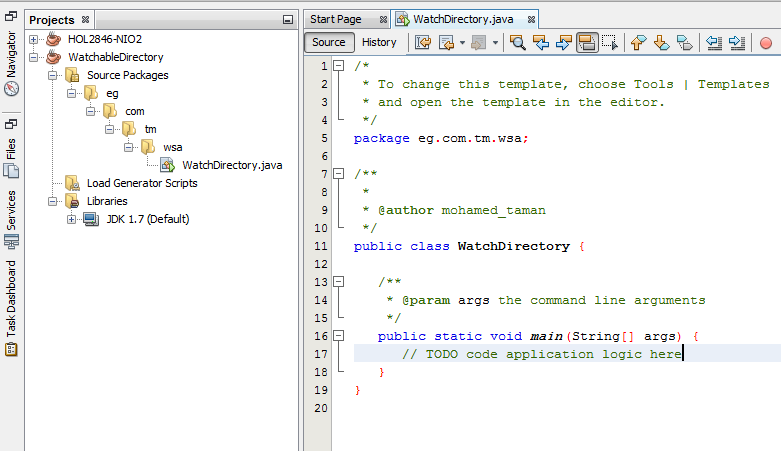


    Figure 3: Created Project.
  4. The following is the full application, select all (Ctrl + A) code inside the already opened class "WatchDirectory" and delete it, then copy and paste the below code in the following list (Listing 1) as it is:

    Listing 1: The Watching Service implementation.
  5. Clean and build the project (Shift + F11) to check that everything is okay, you should see in the output console "BUILD SUCCESSFUL".

Testing the application:

Now we will go through steps for the testing of the application to see the main function of the developed application:

  1. Right click on Source Packages under "WatchableDirectory" project, select New Ă Other…, under Categories select other and from File Type select Folder, click next, in the Folder Name write "WatchedFolder", and then click finish. This folder we will use for watching its event notifications. The final result should look like the following figure (Figure 4).
    Figure 4: Created "WatchedFolder"

    Note: if you didn't create the folder and tries to run the application you will get the following exception " java.nio.file.NoSuchFileException: D:\My Documents\My Examples\NetBeans\7.2\WatchableDirectory\src\WatchedFolder".

  2. Right click on "WatchableDirectory" project, Run.
  3. Navigate to your created folder "WatchedFolder" and do the following steps and monitor Netbeans output console:
    1. Create new folder "New Folder", you will see "ENTRY_CREATE -> New folder".
    2. Rename the folder to "NIO2-WS API"; you will see "ENTRY_DELETE -> New folder", "ENTRY_CREATE -> NIO2-WS API" Successively.
    3. Create new text document, you will see "ENTRY_CREATE -> New Text Document.txt".
    4. Open the text file in notepad (or any of your favorite text editor), type in the file the following "I am using Java 7 NIO2 WS API."; you will see "ENTRY_MODIFY -> New Text Document.txt".
    5. The final result in the console should look like the following figure (Figure 5).
      Figure 5: "WatchedFolder" notifications monitoring output.
  4. Click stop to stop the application.

After successful testing of the application, when you run this code on Mac, Linux, UNIX, Solaris, or any other OS as I did, it should work like charm, and you will get the same results.

How it works:

For developing any watching capable application, we should first create watch service object, and we accomplish this by calling "FileSystems.getDefault().newWatchService()" as in Listing 1 (Step 1).

This is a resource that should be closed after usage. in code I wrapped it by JDK 7 try() resource (Step 9) feature which takes care of closing any I/O resource that implements java.lang.AutoCloseable interface, therefore you don't have to care about closing any resource because the JVM will take care of that for you.

Now, we have the watch service we need to register the java.nio.file.Path "D:\My Documents\My Examples\NetBeans\7.2\WatchableDirectory\src\WatchedFolder " for create, delete and modify events. Since the Path class implements the Watchable interface so it provides register() method to be used for registration process with watch service, as in Listing 1 (Step 2)

After successful registration, we need to wait for incoming events to process them. The watch service is responsible for signaling any notifications done on the registered object. Then these events are placed in a watcher's queue from where we can retrieve events. We require an infinite loop to accomplish this by using for (;;) {}, or while (true) {} as in Listing 1 (Step 3).

In Listing 1 (Step 4) we get the queued watch key by calling one of the following methods (all of them retrieve the key and remove it from the watcher's service queue):

  1. poll(): If no key is available, it returns immediately a null value.
  2. poll(long, TimeUnit): If no key is available, it waits the specified time and tries again. If still no key is available, then it returns null. The time period is indicated as a long number, while the TimeUnit argument determines whether the specified time is minutes, seconds, milliseconds, or some other unit of time.
  3. take():If no key is available, it waits until a key is queued or the infinite loop is stopped for any of several different reasons.

In our case we use take() method, bear in mind that the key has state that may be one of the following; When the key is first created its status is Ready which means that the key is ready for accepting events.

The second state is Signaled and it means that the key has queued events and they are available to be retrieved by one of poll() or take() methods, and after all events retrieval the key should be reset to return back to its ready state by calling key reset() method as in Listing 1 (Step 8). It returns true if the watch key is valid and has been reset, and false if the watch key could not be reset because it is no longer valid.

The key enters the Invalid state if the folder is not accessible anymore, deleted, watch service closed, or key cancel() method called explicitly. We can check this state by using key isValid() which returns Boolean value indicating the key validity.

In Listing 1 (Step 5) we need to retrieve pending events for a key by calling the key.pollEvents() which returns a list of pending events of type WatchEvent<T>,[where T ] represents an event (or repeated events) for an object that is registered with a watch service.

After we poll all events, we need to get the kind of each event (create, modify, delete)along with its count. This could be done via the WatchEvent.kind() method, which returns the event type as a Kind<T> object as in Listing 1 (Step 6). If you ignore the registered event types, it is possible to receive an OVERFLOW event. This kind of event can be ignored or handled. It is a special event to indicate that events may have been lost or discarded. This event is not needed to be registered for notification as it is used by underlying API.

After getting the event type, get the associated folder or file to process it by getting the event context (the file name is stored as the context of the event). After getting the event type, the event context (the file name is stored as the context of the event) should be used to retrieve the event associated file or folder for processing. Then we can implement our business logic. This is accomplished by calling method WatchEvent.context() as in Listing 1 (Step 7).

Finally We should reset the key and return it to the ready state to receive other events, till we stop our application or the key becomes invalid, and this is done by calling reset() method as described before. And if the key was invalid the infinite loop should be broken; as there is no reason to stay in the infinite loop, Listing 1 (Step 8).

If you forget or fail to call the reset() method, the key will not receive any further events!

Even more:


Let's wrap:

Here you have explored a great facility of NIO.2, the Watch Service API. You learned how to watch a directory for events such as create, delete, and modify. After an overview of this API and an introductory application, you saw how to we implemented the application in nine steps, provided with the test scenario and finally explaining the working mechanism.

Where is the best use of this API? You can combine this API with NIO.2 walks (java.nio.file.FileVisitor API) to watch a directory tree (all directories under the parent directory). Also you can watch video camera surveillance for its input (row image) and process it. These examples were simply meant to stimulate your curiosity to explore further the exciting world of this API. Since it is very versatile, it can be applied in many other scenarios. For example, you might use it to update a file listing in a GUI display or to detect the modification of configuration files that could then be reloaded.

This API is a thread safe, and the watch service can be used to register many watchable objects simultaneously. Often, the file system of the Most operating system implements his own file notification mechanism, and the watch service API makes use of it. But, if there is lack of this implementation, watch service API will poll the file system for event notification.

Finally it is part of the JDK 7. It means that it has a great support, enhancement and improvements in future JDK releases. Earlier you had to use external library for each operating system to support your application, while watch service API is a portable solution.

Project source code:

The final project source code could be downloaded from here


Friday, March 1, 2013

Browser: Microsoft IE10 is the first release supporting HTML5 Websockets API.

In my previous post "Microsoft has released IE 10 for windows 7", I have mentioned that this version comes with extensive support for HTML5 APIs, provided with a download link.

Among HTML5 APIs I was looking forward for the support of HTML5 Websocket API.

As I am a JCP member, working on Adopt-A-JSR program for testing the reference implementation (Tyrus) of Java API for WebSocket 1.0 (JSR 356), beside enhancing and validating the specification, that will be part of the next release of JEE7 (Java Enterprise Edition 7) which also includes a lot of server supports for HTML5 APIs as well as the cloud based applications.

I have tested my developed application on IE10 for communication with my endpoint deployed on Glassfish v4_b78 (The reference implementation for JEE7 specifications umbrella), and the result was successful, as the following Figure 1.


Figure 1: The testing results on IE10.

This means that IE10 is the first Microsoft browser version that supersedes previous versions 9- for HTML5 Websocket support.

Who Supports WebSockets Today?

The following table provides a brief summary of the support for WebSockets that most popular browsers provide at present.

Table 1 Browser Support for WebSockets

Browser

WebSockets Support

Internet Explorer

WebSockets is supported now in Internet Explorer 10. Metro applications written using JavaScript and HTML5 will support WebSockets as well.

Firefox

WebSockets are supported starting with version 6 of the browser released in mid-2011. Some very early support was offered in version 4 and then dropped in version 5.

Opera

Support for WebSockets has been removed in version 11.

Chrome

WebSockets are supported starting with version 14, which was released in September 2011.

Safari

Supports an earlier version of the WebSocket Protocol.

With the exception of Firefox, you can programmatically check for WebSockets support by looking at the window.WebSocket object.For Firefox, you should currently check the MozWebSocket object. It should be noted that most HTML5-related capabilities can be checked in browsers by means of a specialized library such as Modernizr (modernizr.com).

In particular, here’s the JavaScript code you need to write if you linked the Modernizr library to your page:


Now almost we have the chance to run all of HTML5 websocket based client's applications, on the majority of popular vendors browser.

Thursday, February 28, 2013

Browsers: Microsoft has released IE 10 for windows 7.

Working with HTML5 and targeting a specific specification to multiple customers who has different platforms, requires testing this development on all cross browsers vendors from IE, Safari, Chrome, Opera to Firefox as major browsers.

Microsoft IE was the least one supporting the HTML5 standard specification APIs than other browsers, but by releasing the IE10 hope to see more support for HTML5 and CSS3.

Microsoft has released the final version of Internet Explorer 10; with support for Web standards. Officials said "IE10 on all platforms add support for more than 30 new Web standards beyond what IE9 supported, including support for new HTML5, CSS3, DOM, Web Performance, and Web Application specifications".

Microsoft plans to begin auto-updating customers with Windows 7 Service Pack 1 and/or Windows Server 2008 R2 and higher with the IE10 "in the weeks ahead".

But this version is aimed to Support Windows 7 Service Pack 1, Windows Server 2008 R2 SP1 operating systems only. And it is already bundled with windows 8 and RT versions. And it comes in 95 languages flavor. But this means that Windows Vista & XP users will not have this version as auto update or download version.

When you run this version of IE10 on Win7 and 2008 RC2, you will find some differences from its peer running on Win8 & RT.

To download your X64/X86 platform version, with your preferred language, download it from Microsoft Download Center.

Saturday, January 19, 2013

Maven: Getting started with Apache Maven 3.0.4 (Part 2)

In the last article part 1, I have explained the steps for downloading, setting up and installation verification on both Mac and windows successfully, and if everything was going okay then you are ready for this part.

Here I will explain how to create, compile and test a basic maven project, with explanation of POM (Project Object Module), then understanding of maven build life cycle which it provides.

Creating a maven project

Now with everything set upped and all the steps has been done successfully? Great! Let's get down to the business, by creating a first maven project. Specifically with maven goal archetype:generate.
  1. First create new folder for your project, for example "C:\Hello Maven".
  2. Open new command-line on Windows or terminal on Mac and run the following command:


  3. If this is the first time you run this command you will see on command-line a bunch of downloads taking place, which used to be referenced locally by your projects after that.

  4. After downloads are finished you will see a rather long list of local or remote archetypes. Each archetype has a number, name and short description explaining the purpose of the archetype and what is it. By now we will use the default one (in my case) with the number 244 (244: remote -> maven-archetype-quickstart(An archetype which contains a sample Maven project.)).

    When being asked for the archetype number, type 244 followed by enter.

    Note: The number depends on if you are running from local or remote repositories.

    Note: If you are using internet via proxy server, then you should specifies the proxy server information according to access the internet, you provide these information via the maven settings.xml file, which is located inside maven home directory ".m2". The settings should be as the following:

  5. Then you will be asked to choose the archetype version, the default one is the most stable version lets choose that (typically choose the default in this case number 6). Types 6 then hit enter.
  6. After that, you will be asked to enter the following properties (Maven project co-ordinates) respectively:
    1. GroupId co-ordinates are used to specify the hierarchical location of a project within a Maven repository. In this case, the repository is the local Maven repository present in your filesystem. GroupId co-ordinates are typically the root package and thus can be shared by multiple projects within an organization.

    2. The artifactId is an identifier for your project and version here refers to the project version.

    3. Packages refer to the reverse DNS root package name that contains all your source and test classes.

    artifactID identifiers will be used when artifacts are deployed in repositories and used as dependencies for other projects.

    For version just hit enter and "1.0-SNAPSHOT" will be used, rather than that type what version name you want.

    After finishing all the parameters, you will get confirmation question about your entered data, choose yes and upon completion you should see the following on the command-line:

What happened just here?

We have asked a maven plugin to create a maven project for us by firing the following command "mvn archetype:generate".

A new project for apache maven can either be created by a "hand-crafted" with a minimal POM.xml file with folder creation or generated through a maven project archetype.

Surprisingly, what exactly have maven created for us????

Simple answer, the following:

It creates a maven project, with commonUI (artifactId) root project contains src and pom.xml file. The source contains the main folder which contains the project source classes, and another one test which contains all your test classes, both has the same hierarchy created as when get asked for package property eg.com.tm.mvn.proj. Finally in main folder there is a basic application class contains hello world console app (App.java), and its unit test class under test folder (AppTest.java).

Compiling and testing the project

Up to this point we have created a maven project at hand; then the most interesting part is compiling and testing the previously created project.

If you are new to Apache Maven, which probably why you are here ;), then this will be your first introduction to maven build lifecycle, as maven has number of built-in lifecycle goals.

To compile:

  1. Navigate to you project folder which contains the pom.xml file, in this case commonUI, and fire the following command:
  2. After this command, Maven will begin downloading the project dependences into your local repository, and proceeds compiling your project. At the end print the following on the console:

  3. The previous command triggers the java compiler associated to the project pom.xml file, it is default to JDK 1.5+ and indeed the pom.xml can be modified to add any other JDK source to be used for compilation.
  4. The successful runs of the compile maven goal will generate a target folder, which contains all compiled source classes. the directory structure should be as the following:

To Test:

After successful compilation of your project, now it is the time for testing. Maven recognizes that software should be tested before goes to the next step, it do this as default behavior of build lifecycle with built-in goal called test. This makes TDD (Test Driven Development) implementation more easer for development teams to integrate in their development process.

When the default convention is being used in maven project, by having src\test folder that contains all tests for the code. Then just run the following command to initiate the test process:

This command triggers the test process to run all test classes under src/test folder, after successful completion you should echoed back with a brief testing report on the terminal with the following output:

And the folder structure will be as the following:
The surefire-reports contain the testing report for each test class and suite, and folder test-classes contain the compiled test unit classes. Surefire is a plugin used for testing report generation and used by default by maven.

Finally we have now reached out to the end of the article, hope you enjoy it and being useful to you, for any question just leave your comment.

Monday, January 7, 2013

Maven: Getting started with Apache Maven 3.0.4 (Part 1)

What is maven?
Apache Maven is a software project management and comprehension tool. Based on the concept of a project object model (POM), Maven can manage a project's build, reporting and documentation from a central piece of information.

Maven's Objectives
Maven's primary goal is to allow a developer to comprehend the complete state of a development effort in the shortest period of time. In order to attain this goal there are several areas of concern that Maven attempts to deal with:
  • Making the build process easy.
  • Providing quality project information.
  • Providing guidelines for best practices development.
  • Allowing transparent migration to new features.

Providing quality project information
It also provides plenty of useful project information that is in part taken from your POM and in part generated from your project's sources. For example, Maven can provide:
  • Change log document created directly from source control.
  • Cross referenced sources.
  • Mailing lists.
  • Dependency list.
  • Unit test reports including coverage.

Providing guidelines for best practices in development and testing
Maven aims to gather current principles for best practices development, and make it easy to guide a project in that direction.

For example, specification, execution, and reporting of unit tests are part of the normal build cycle using Maven. Current unit testing best practices were used as guidelines:
  • Keeping your test source code in a separate, but parallel source tree.
  • Using test case naming conventions to locate and execute tests.
  • Have test cases setup their environment and don't rely on customizing the build for test preparation.
Maven also aims to assist in project workflow such as release management and issue tracking.

Maven also suggests some guidelines on how to layout your project's directory structure so that once you learn the layout you can easily navigate any other project that uses Maven and the same defaults.
For more information and a complete set of features about maven please see the references below.
Whatever the reasons that made you choose Maven (be it build automation, dependency management, standardization, testability, lifecycle management, continuous integration, or any other industry best practice), This and coming articles will get you up and running in the shortest time possible.
Typically we now have solid information about Maven. Let's dirt our hands with the installation process on both windows and Mac OS X as those are my main development operating systems. The Installation on different operating systems is not far from the provided steps below, enough talking and let's goes ahead with coding.

Prerequisite software pieces:
  1. JDK 1.5 or above to allow maven installation process goes successfully, not JRE because it is not sufficient.
  2. Apache Maven v3.0.4, and it could be downloaded from here (download).
Installing Maven on Windows and Mac OS X operating systems for the first time.

Here we will set up Maven on various platforms and host environments.

Setting up Apache Maven on Windows:
  1. Maven is a command line tool, and needs to be integrated with windows environment variables. It is very easy to setup and it is Java dependent.

  2. Download and unzip the distribution archive, i.e. apache-maven-3.0.4-bin.zip (as of this writing) to the directory you wish to install Maven 3.0.4. These instructions assume you chose C:\apache-maven-3.0.4 which will be created from the archive.

  3. Add the M3_HOME environment variable by opening up the system properties (WinKey + Pause), selecting the "Advanced" tab, and the "Environment Variables" button, and then adding the M3_HOME variable in the system variables with the value C:\apache-maven-3.0.4. Be sure to omit any quotation marks around the path even if it contains spaces.

  4. Optional: In the same dialog, add the MAVEN_OPTS environment variable in the user variables to specify JVM properties, e.g. the value -Xms256m -Xmx512m. This environment variable can be used to supply extra options to Maven.

  5. In the same dialog, update/create the Path environment variable in the user variables and prepend the value %M3_HOME%\bin to add Maven available in the command line.

  6. In the same dialog, make sure that JAVA_HOME exists in your user variables or in the system variables and it is set to the location of your JDK, e.g. C:\Program Files\Java\jdk1.6.0_38 and that %JAVA_HOME%\bin is in your Path environment variable.

  7. See the below Figure 1 which summaries the steps from 3 to 6.


    Figure 1: Maven windows integration steps
  8. Go to verification step below to ensure that your maven installation goes successfully.

Setting up Apache Maven on Mac OS X:

Installing Maven on the Mac OS X isn’t very different from the installation and setup on Linux. This really shouldn’t be a surprise because OS X is built on top of BSD Linux in the first place.
  1. Extract the distribution archive, i.e. apache-maven-3.0.4-bin.tar.gz to the directory you wish to install Maven 3.0.4. These instructions assume you chose /Applications/Maven_3.0.4 which will be created from the archive.

  2. The next step is to add commands to export the PATH and M3_HOME environment variables in the .bash_login file.

  3. In a command terminal, add the M3_HOME environment variable, e.g.

  4. Optional: Add the MAVEN_OPTS environment variable to specify JVM properties, e.g.

    This environment variable can be used to supply extra options to Maven.

  5. Add M3_HOME/bin environment variable to your path, e.g.

  6. Make sure that JAVA_HOME is set to the location of your JDK, e.g.
    export JAVA_HOME=/usr/java/jdk1.7.0_10 and that $JAVA_HOME/bin is in your PATH environment variable.

  7. Go to verification step below to ensure that your maven installation goes successfully.
Verify the Maven installation:
  1. From Windows, open a new command prompt (Winkey + R then type cmd).

  2. From Mac, open command terminal.

  3. Run

    To verify that it is correctly installed.

  4. You should see something like the following Figure 2, otherwise check the installation steps:


    Figure 2: Maven installation is successful
Apache Maven is now ready and available for use in the command line. It is also available for integration with IDEs and other development tools.

By reaching here you are done the installation and verification steps successfully, congratulations. Next I will explain how to create, compile and test a project.

References:
  1. http://maven.apache.org/
  2. http://maven.apache.org/maven-features.html
  3. http://maven.apache.org/download.cgi

Friday, November 23, 2012

JDK7: Part 2- The power of java 7 NIO.2 (JSR 203) (Code Examples)

Get educated with the new file I/O mechanism introduced in the JDK 7 release.

In Part 1 I introduced the important concepts about new JSR 203 shipped and delivered with the latest release of Java development kit 7.

Here I am covering the important aspects involved in developing NIO.2-based applications by examples and case studies for the concepts introduced in part 1, this will spice up your Java 7 applications with the new I/O capabilities. You will learn to develop NIO.2 applications, beginning with simple but essential stuff and gradually moving on to complex features such as sockets and asynchronous channels.

In this second part I shipped it with fully coding examples for the following topics:
  1. Working with the new Path Class.
  2. Metadata File Attributes.
  3. Working with Symbolic and Hard Links.
  4. New API for Files and Directories.
  5. The FileVisitor Interface.
  6. Monitoring via Watch Service API.
  7. New powerful Random Access Files.
  8. Networking with the Sockets APIs.
  9. The Asynchronous Channel API.
  10. Production tips.
In the link below find the code as Netbeans project, divided into sections based on topics above, and also includes the material that guides you in details from software pre-requisite to compile and run the code, full explanation of every line of code and testing scenarios.

NIO2 project code and material.


Saturday, November 17, 2012

Mac: Alternatives to notepad++ on Mac OS X

For long time I have been working on windows platform sine first time I have touched the computer. Over the time I become in the development environment. After becoming team leader and then Systems Architect, I have reached to the point that I have a certain applications which I familiar with and know all of its features; one of the most interesting nifty notepad applications is Notepad++.

The default Notepad editor comes in very handy to quickly note down some important notes. However, the lack of potential features is realized when you are forced into the situation where you’ve to compare two text files or edit HTML document for instance. In such situations Notepad++ is a more than adequate alternative to native Notepad app.

Notepad++ is an open source project and is completely written in C++ language. Not only does it provide simple text editing option but also wide range of native add-ins and third-party plugins to make it the best Notepad alternative on Windows PC. It has a large swathe of features that makes it a developer's favorite alternative. It includes multi tab document support, easy comparison, syntax highlighting, syntax folding, document map, auto completion, macros support and many others, But how about such functionality on Mac? Is there any Notepad++ for Mac?

Recently (from 4 years) I worked on Linux and Mac, but I admired with Mac and decided to buy a Mac pro laptop, and for sure I searches for the same applications I used to use before on windows, sometimes you find and other you didn't, therefore you should get alternatives.

Since Notepad++ is not available on Mac, I will cover some of the worthy alternatives of Notepad++ for Mac.

  • TextWrangler
    TextWrangler is a powerful and richly featured tool for composing, modifying, and transforming text stored in plain-text files. and in my opinion it is a great alternative Text Editing and Manipulating, Programming, OS Platform Integration and Other Useful Features it has like Notepad++ and even more.

    The following are some of its features but not limited to those, there are more.

    Features of TextWrangler

    • Powerful single and multi-file search & replace
    • Flexible ‘grep’ style pattern-based search and replace based on PCRE (Perl-Compatible Regular Expression)
    • Sort Lines and Process Duplicate Lines commands offer grep pattern support for sorting, extracting, and handling text
    • Find Differences to compare two versions of a text file and merge the differences
    • Support for rectangular text selections
    • Built-in text transformations: Zap Gremlins, Change Case, Entab/Detab, and more
    • Open and save files in a variety of character sets, including Unicode (UTF-8 and UTF-16) files
    • Supports editing of multi-byte and Unicode text
    • Live Search for incremental, in-window searches
    • Open and save files in Mac, Unix, and Windows line-ending formats
    • Integrated support for Mac OS X’s spelling service
    • Hard or soft wrap text however you prefer
    • Quoted text rewrapper
    • Multiple Undo
    • Multiple Clipboards
    • Splittable editing windows
    • Auto-Indent

  • jEdit
    jEdit is written in Java, so it virtually runs on any OS out there including Mac OS. There are already few paid text editors or advanced editors available on Mac, but unlike other jEdit is a free open source project. This is the best alternative available on Mac.

    Features of jEdit
    • Built on Java
    • Unlimited undos/ redos
    • Syntax highlighting for more than 200 languages
    • Auto indent
    • Plugin repository with more than 200 plugins
    • Word wrap
    • Kill ring
    • Open any number of files simultaneously
    • File system browser
    • and more

  • Editra
    Editra, an open source program build using wxWidgets supports major platform like Windows, Mac and Linux. It supports over 60 programming language and has all the features users crave to have in their favorite editor. The project is in early stage of development so you may encounter few hiccups during your journey. Editra is visually appealing editor which comes with icons themes and loads of plugins.

    Editra could be the next big thing in code and text editor segment. Here are some of the features of Editra.

    Editra Features
    • Supports over 60 programming language
    • Syntax highlighting
    • Code folding
    • Auto completion
    • Auto indent
    • Drag and drop feature
    • Export to HTML/LaTeX/ RTF and other formats
    • File history
    • Multilingual interface
    • Undo/ Redo
    • Tabbed windows
    • Plugins supports
    • and more

In my opinion it is arguably the best Notepad++ alternative on Mac. The community is extremely supportive and active.