Showing posts with label Google. Show all posts

Monday, April 14, 2014

Developer options does not exist on Android 4.2+

While I am testing my android application, it is a good practice to test on real devices as much as I can.

I was testing my APK file on devices but it failed, while on emulators it runs successfully, so I need to enable debugging with logCat bundled with Android ADT (eclipse or new Android studio IDE).

So you need to connect your device to your computer via OEM USB driver, to deploy debugging APK package to your device to test from your IDE or command line.

But wait you will not be able to connect to your application and get it's runtime log, unless you enabled Developer options on your phone.

To enable it on most devices running Android 3.2 or older, you can find the option under Settings > Applications > Development.

On Android 4.0 and newer, it's in Settings > Developer options.

But note carefully: On Android 4.2 and newer, Developer options is hidden by default. To show it here is the magic, go to Settings > About phone and tap Build number seven times.

Return to the previous screen to find Developer options.


Happy debugging :)


Sunday, March 2, 2014

Creating right mobile icons sizes for Android, iOS and Windows applications.

I am developing a mobile application that will serve all Egyptians people for a critical national project.

It a service and management based mobile application which is related to Fuel locations finder and Customers fuel subsidy management card System.

It will be released soon by the middle of March in Google play for Android platform and by the end of March 2014 in Apple App Store for iOS application, followed by windows mobile platform in May 2014.

It is a hybrid mobile development rather than native development.

While designing the application I have faced many challenges performance, design, Architecture, cross-platform development, and Graphics especially the logo design. Designing icons especially for iOS platforms is a tricky a little bit.

There are different icons sizes related to resolution (normal and Retina’s displays), places, and naming conventions for applications targeting iOS 3, 4, 6, and 7.

However, it was easier developing the icons for Android platform, but anyway I will share icons sizes for both platforms. and Microsoft Windows mobile platform as well.

It is a good idea and practice to develop

the larger icon size first then export it to different sizes. I used Adobe Photoshop and Illustrator CC. Illustrator is a great tool for logos because it is vector based, so scaling the artwork are easier to scale without losing the artwork resolution.

Android platform

The following table show different icons for different displays resolutions in pixel:


Display


Launcher Icons


Action Bar Icons


Google Play


512x512


---


Double Extra High dpi (xhdpi)


---


96x96


Extra High dpi (xhdpi)


96x96


64x64


High dpi (hdpi)


72x72


48x48


Medium dpi (mdpi)


48x48


36x36


Low dpi (ldpi)


36x36


---

iOS platform

The following table shows different icons for different iDevices displays resolutions in pixel, note that iOS 7 iPhone and iPod has Retina's display support only, as all iOS 7 supported iDevices are iPhone from 4 to 5s, and 5th generation iPod touch.


OS/ Device/ Place


Standard Resolution


High Resolution (Retina Display)


iPhone and iPod Touch


iPad


iPhone and iPod Touch


iPad


iOS 6 platform


Home Screen Icon


57x57


72x72


114x114


144x144


Settings Icon


29x29


29x29


58x58


58x58


Spotlight Icon


29x29


100x100


58x58


50x50


App icon for the App Stores


1024x1024


512x512


1024x1024


1024x1024


iOS 7 platform


Home Screen Icon


---


76x76


120x120


152x152


Settings Icon


---


29x29


58x58


58x58


Spotlight Icon


---


80x80


80x80


40x40


App icon for the App Stores


---


512x512


1024x1024


1024x1024

Windows Phone

The following table shows different resolutions in pixel for Microsoft windows platform application and marketplace icons:


Application Place


Icon Size


Application


Icon


62x62


Tile Image


173x173


Marketplace


Application icon for Windows Phone Marketplace catalog (small)


99x99


Application icon for Windows Phone Marketplace catalog (large)


173x173


Desktop application icon for Windows Phone Marketplace catalog


200x200


Monday, December 9, 2013

Android: Boost up the Android emulator speed up to 400% on Intel based architecture

In my previous post How to inject Android compiled .apk package into its Device Emulator from the command line. I have demonstrated how to add your compiled .apk file to android emulator, from command line with adb command, included in ADT platform tools.

One of my friends commented:
"Are u really using the emulator.....it is very slow. Even on the fastest machines. I always use a real device."
From this comment, I have made some R&D about this problem, and especially this tools are developed by Google ;), and indeed they know about this symptom.

Also testing on real devices are very costly and time consuming process, as we have a variety of devices varies from multiple screen sizes, which are one of Android developer's worst nightmares. There are a huge number of different screen configurations of Android devices.


The great thing about using an emulator for development is that it gives you an opportunity to develop applications without having a real Android device. The default Android emulator comes together with the Android SDK and can be found in the "tools" folder.

So far so good, we have our coffee, but can we drink it? The answer comes about 5 minutes after we hit the "Launch" button. Go grab a coffee. Have breakfast. Come back. Wait another 5 minutes. Maybe even more.

In meantime, the default Android emulator is notoriously slow. So, what should we do? That is easy - start using a properly fast Android emulator.

Emulation vs. Simulation

If you are using Apple iPhone simulators, you will find that the iPhone simulator does not have the same issue as the Android Emulator.

One of the reasons for this is that it does not run a “real emulator”, because the CPU instruction used by the iPhone simulator is the same as the one used by the host (x86).

On the contrary, Android Emulator emulates a real ARM processor on top of an x86 processor. This is a lot of overhead.

At least for quick test and demonstration purposes, I do not need to emulate an ARM processor; I just need to be able to run Android and my application. The main objective before releasing an application is to find bugs and design imperfections.

Okay, it is slow. Then what can we do about it?


Let us go through steps to solve the slowness problem of Android emulator;

  1. First, let us delegate the rendering process to host GPU instead of overhead our CPU by this process, it will make it happy. Do it by checking "Use Host GPU" checkbox in AVD's edit window.

    The screen should now look better and be more responsive. That is because the CPU is happy to not dealing with the tedious work of doing rendering anymore. However, that is still not fast enough.


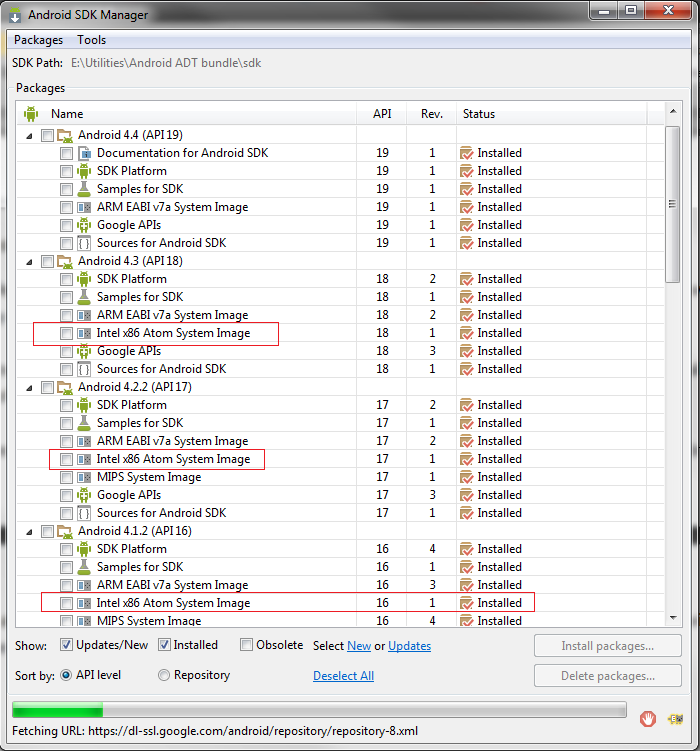
  2. Second we need to download Intel Atom (x86) system image for each Android version you need to use for testing.

  3. Third, download Intel x86 Emulator Accelerator (HAXM, for Mac and Windows only). This will enable virtual machine acceleration capabilities of the Intel CPU, from Android SDK manager --> tools. Or install it from Intel site.

  4. The SDK only copies the Intel HAXM executable on your machine, and it is up to you to install the executable.

    To install the Intel HAXM executable, search your hard drive for IntelHaxm.exe (or IntelHAXM.dmg on Mac OS X). If you left everything to default, it should be located at %Android_HOME%\sdk\extras\Intel\Hardware_Accelerated_Execution_Manager\IntelHaxm.exe.

    Intel HAXM only works in combination with one of the Intel® Atom™ processor x86 system images.


  5. In order to be able to install the Intel HAXM, you need to have Intel VT-x enabled in your BIOS, otherwise you will get an error like this during install.


    Enabling Intel VT (Virtualization Technology)


    How do I enable Intel VT in your machine BIOS?
    1. Boot into BIOS.
    2. Select "Config".
    3. Select "CPU".
    4. Press enter at "Intel Virtualization Technology".
    5. Select "Disable".
    6. Press F10 and select Yes.
    7. Boot into Windows then shutdown the system.
    8. Boot into BIOS again.
    9. Select "Enable" - Intel Virtualization Technology.
    10. Press F10 and select Yes.

  6. After installation goes successful, edit your AVD and chose Intel® Atom (x86).

  7. Finally Hit okay, then lunch your cake and definitely enjoy the speed.
VIP Note:
You could say that this level of speed should be sufficient. That may be true, but an issue with the Intel x86 images is that you do not get Google Apps, they only come with ARM images. This is important if you are testing an app that uses GMaps, or Google Play Services.

Monday, August 26, 2013

jQuery: Loading, parsing and processing external data files, streamlined with jQuery.

Using jQuery
One of my concerns when developing mobile web applications, is the static data that should be loaded every time application is opened via web services and read from database which affects the performance of application and eat much bandwidth of user connection, especially if it large contents. One of simple and easy way to process data files is using jQuery in development, which streamlined the loading, parsing and manipulating the data files on client side.

In my previous article "Why not jQuery? it is Fast, powerful, cross browsers and easy to use framework.", I have introduced and described how to use jQuery in development and how it make easy to traverse, apply (CSS, effects), and binds actions to DOM element. While in this article, I will explain loading data from external files for more processing, so let us get started.

Loading external data files
If you want to interact with data outside of your current HTML file, jQuery has some excellent tools for doing these sorts of Ajax calls. Though Ajax is short for Asynchronous JavaScript and XML, you can access any type of data with Ajax.

Example html file structure:

Loading text Data:
To load a file with jQuery, you use the get function. jQuery.get() needs at least two parameters: the URL you want to load and the function to which you want jQuery to send the results to be handled. Here is a simple example for loading a text file:

The URL I have provided ("Data/Data.txt") is just the name of a file, which resides in Data folder. In this case, the file is text, but it could be a bit of HTML code or another type of content (XML or JSON).

Text data file contents:

Code:

Note:Every ".append("<rb />");" should be ".append("<br />");".

Final results:
Text Data Contents:
My Name is Mohamed Taman.
I am Systems Architect And Design Supervisor.
A JCP member, Speaker, Consultant, and Trainer.
Also I am Photographer

Loading & parsing XML or HTML Data:
The single principle behind jQuery is to write less code. The hard work is left to the library. When it comes to fetching and parsing XML, jQuery keeps things predictably simple.

Like the plain JavaScript example, we will be parsing the XML in an otherwise empty HTML file. However, in this case, we will load our XML straight from a file, which is a common situation. Make sure you have a file named data.xml containing the XML lines as the following inside Data directory:

To load and parse an XML or HTML file with jQuery, you use the get function. jQuery.get() needs at least two parameters: the URL you want to load and the function to which you want jQuery to send the results to be handled, as we did with text file. Here is a simple example for loading a xml file:

The URL I have provided ("Data/Data.xml") is just the name of a file, which resides in Data folder. In this case, the file is xml.

Code
<!doctype html>
  <html>
   <head>
   <meta charset="utf-8">
   <title>jQuery Files loading Example</title>
   <script type="text/javascript" src="http://ajax.googleapis.com/ajax/libs/jquery/2.0.3/jquery.min.js">
   </script>
   <script language="javascript" type="text/javascript">
   $(document).ready(function(e) {
  
      var spn = $('span').css("color","blue");
  
      $.get("Data/Data.xml",function(xml){
           
        spn.text("XML Data Contents:");
     
        $("child", xml).each(function(i){ 
            $('div').append(this.getAttribute("data")).append("<rb />");
        });
      });
  });
  </script>
 </head>
 <body>
  <span></span>
  <div></div>
 </body>
</html>
Final results:
XML Data Contents:
My Name is Mohamed Taman.
I am Systems Architect And Design Supervisor.
A JCP member, Speaker, Consultant, and Trainer.
Also I am Photographer

Loading & Parsing JSON Data:
You are not restricted to only loading simple files. You could include directory names or even a full URL. Whatever you load needs to be on the same domain that you are making the call on. For security reasons, browsers will not let you retrieve data from someone else’s site, even if that data is meant to be public. You can get around this by loading the file server-side and then accessing the local copy.

A special case exists that allows you to load data from another site. If the site provides JSON data and it allows you to specify a callback function in the URL, then you can load the data remotely using jQuery’s getJSON function. Here is the basic structure:

The URL I have provided ("Data/Data.json") is just the name of a file, which resides in Data folder. In this case, the file is xml.

The URL you send to the getJSON function needs to contain a question mark in place of the name of a function. Then jQuery will create a function and call your anonymous function (or named function, if you choose) from its new function.

Another way getJSON is different from get is in the type of data passed in the parameters to your callback function. Rather than the plain text returned to the URL, jQuery passes you parsed JSON in the form of a JavaScript object.

JSON data file contents

Code

Final results:
JSON Data Contents:
My Name is Mohamed Taman.
I am Systems Architect And Design Supervisor.
A JCP member, Speaker, Consultant, and Trainer.
Also I am Photographer

Conclusion
Building on top of jQuery can save you time and allow you to focus on higher-level issues with your mapping projects. You also get an added layer of complexity because you have one more piece of JavaScript to include in your HTML. Hopefully its benefits make up for this minor cost in loading time.

References
jQuery.get() method specification
jQuery.JSON() method specification
jQuery API Documentation


Friday, March 2, 2012

Glassfish 3.1.2: Unable to load resource [com.mysql.jdbc.EscapeProcessor]

While I am building JEE6 web profile application, using EJB3.1, JPA2.1, JSF (IceFaces 3) against MySQL database v5.1.15, my java web app fails in Netbeans v7.1 when I try to run it.

Netbeans reports successful deployment, but then I get this error when executing a JPA query against MySQL:

java.lang.IllegalStateException: WEB9031: WebappClassLoader unable to load resource [com.mysql.jdbc.EscapeProcessor], because it has not yet been started, or was already stopped.
This error occurs at the first query against the database. The entire application works fine with Netbeans version 7.1.
One potential clue is that I had to manually add the MySQL driver to the project for unit test the project using embedded glassfish 3.1.2.

After reviewing/tracing the problem and some googling about the problem here is the fix:

  1. For unit testing put the MySQL driver in the test libraries only don't add it to the project to final deployment.
  2. For production, the MySQL driver should not be in the project ... it should be in <DOMAIN>/lib/ext... in your glassfish v3.1.2 folder.
If there is any help just leave your comment.

Tuesday, May 31, 2011

Google: How to install Google's Chrome OS

The commercial Chromebooks are almost here, but if you want to try Chrome OS sooner than that you can do it. Unfortunately, it’s not as easy as you might think. Here’s how to do it.

First, if you just try looking for “Chrome OS download” on Google, ironically, you’re going to have trouble finding it. Instead, you’re most likely to find links that will eventually take you to Chrome OS Linux. This is not Google’s Chrome OS. It’s a Linux distribution that uses Chrome OS. It may be fine. I don’t know. I haven’t tried it, but it’s not the Chrome OS that you’re looking for.

The real Chrome OS, which is indeed based on Linux flavored by Ubuntu, is available as source code, along with build instructions, at the Chromium OS Developer Guide. If you’re not an experienced programmer with access to a 64-bit Linux system, Ubuntu 10.04 Long Term Support (LTS) version for choice, you don’t want to go this route though.

For people who don’t program in C for a living, the smart thing to do is to download a Chrome OS virtual machine (VM) or USB stick live image from Hexxen.

These images, but I’ll let Hexxen explain what they’re up to: “Each day at around 6PM GMT the latest code is downloaded automatically and compiled into images you can try out, containing the latest changes. You can get images in either USB, VirtualBox or VMware format. For the best experience, it’s recommended you use the USB images. If these don’t boot on your device then go ahead and try the VirtualBox or VMware image. These should always work (assuming the build wasn’t broken at the time they were built), but you’ll find they’re quite slow, because there’s no graphical acceleration.”

These builds are, in my experience, safe. They are not, however, stable. These are beta programs with all the foibles that come with betas. In addition, some of them will indeed prove to be broken. Welcome to life at programming’s cutting edge.

Personally, I run Chrome OS hard drive images on VirtualBox on one of my Dell Latitude E6510 test boxes. These are powered by a 2.8-GHz Intel Core i7 with an 800-MHz front-side bus. It has 4GBs of RAM, a 500GB Serial ATA (SATA) drive, and an nVidia NVS 3100 M (Graphics Media Accelerator). But, for running Chrome as a VM, you can forget about the GMA. Chrome OS can’t use it.

Yep, sure enough. Chrome OS looks just like the Chrome Web Browser.

I also use the USB versions on my friend  Dell Mini 9. For Chrome OS, this early model Ubuntu Linux netbook, with its 1.6Ghz single-core Intel Atom 270 Diamondville with a gigabyte of RAM and am 8GB solid state drive (SSD) and Diamondville’s built-in 945GSE graphics is underpowered. Still, Chrome OS works better on it than it does on a VM.

If I were you, and wanted to play with Chrome OS, I’d used a more up-to-date low-end notebook. Chrome OS will use local storage-unlike what some people seem to think-and it’s optimized for SSDs. You can run it on a laptop or desktop with a conventional hard drive, but in my own experience it clearly does better with SSDs.

So, ready to give it a try? Well be aware that it’s going to be a bumpy ride at time and that Chrome OS’ interface is essentially the same as the Chrome Web browser. You should know that you’re not going to see the kind of speed you’re used to with the Chrome Web browser. This is, one more time with feeling, a beta. But, if like me, your idea of a good time is playing with operating systems, you’re ready to go now. Good luck!