Showing posts with label iPhone. Show all posts

Sunday, March 2, 2014

Creating right mobile icons sizes for Android, iOS and Windows applications.

I am developing a mobile application that will serve all Egyptians people for a critical national project.

It a service and management based mobile application which is related to Fuel locations finder and Customers fuel subsidy management card System.

It will be released soon by the middle of March in Google play for Android platform and by the end of March 2014 in Apple App Store for iOS application, followed by windows mobile platform in May 2014.

It is a hybrid mobile development rather than native development.

While designing the application I have faced many challenges performance, design, Architecture, cross-platform development, and Graphics especially the logo design. Designing icons especially for iOS platforms is a tricky a little bit.

There are different icons sizes related to resolution (normal and Retina’s displays), places, and naming conventions for applications targeting iOS 3, 4, 6, and 7.

However, it was easier developing the icons for Android platform, but anyway I will share icons sizes for both platforms. and Microsoft Windows mobile platform as well.

It is a good idea and practice to develop

the larger icon size first then export it to different sizes. I used Adobe Photoshop and Illustrator CC. Illustrator is a great tool for logos because it is vector based, so scaling the artwork are easier to scale without losing the artwork resolution.

Android platform

The following table show different icons for different displays resolutions in pixel:


Display


Launcher Icons


Action Bar Icons


Google Play


512x512


---


Double Extra High dpi (xhdpi)


---


96x96


Extra High dpi (xhdpi)


96x96


64x64


High dpi (hdpi)


72x72


48x48


Medium dpi (mdpi)


48x48


36x36


Low dpi (ldpi)


36x36


---

iOS platform

The following table shows different icons for different iDevices displays resolutions in pixel, note that iOS 7 iPhone and iPod has Retina's display support only, as all iOS 7 supported iDevices are iPhone from 4 to 5s, and 5th generation iPod touch.


OS/ Device/ Place


Standard Resolution


High Resolution (Retina Display)


iPhone and iPod Touch


iPad


iPhone and iPod Touch


iPad


iOS 6 platform


Home Screen Icon


57x57


72x72


114x114


144x144


Settings Icon


29x29


29x29


58x58


58x58


Spotlight Icon


29x29


100x100


58x58


50x50


App icon for the App Stores


1024x1024


512x512


1024x1024


1024x1024


iOS 7 platform


Home Screen Icon


---


76x76


120x120


152x152


Settings Icon


---


29x29


58x58


58x58


Spotlight Icon


---


80x80


80x80


40x40


App icon for the App Stores


---


512x512


1024x1024


1024x1024

Windows Phone

The following table shows different resolutions in pixel for Microsoft windows platform application and marketplace icons:


Application Place


Icon Size


Application


Icon


62x62


Tile Image


173x173


Marketplace


Application icon for Windows Phone Marketplace catalog (small)


99x99


Application icon for Windows Phone Marketplace catalog (large)


173x173


Desktop application icon for Windows Phone Marketplace catalog


200x200


Monday, December 9, 2013

Android: Boost up the Android emulator speed up to 400% on Intel based architecture

In my previous post How to inject Android compiled .apk package into its Device Emulator from the command line. I have demonstrated how to add your compiled .apk file to android emulator, from command line with adb command, included in ADT platform tools.

One of my friends commented:
"Are u really using the emulator.....it is very slow. Even on the fastest machines. I always use a real device."
From this comment, I have made some R&D about this problem, and especially this tools are developed by Google ;), and indeed they know about this symptom.

Also testing on real devices are very costly and time consuming process, as we have a variety of devices varies from multiple screen sizes, which are one of Android developer's worst nightmares. There are a huge number of different screen configurations of Android devices.


The great thing about using an emulator for development is that it gives you an opportunity to develop applications without having a real Android device. The default Android emulator comes together with the Android SDK and can be found in the "tools" folder.

So far so good, we have our coffee, but can we drink it? The answer comes about 5 minutes after we hit the "Launch" button. Go grab a coffee. Have breakfast. Come back. Wait another 5 minutes. Maybe even more.

In meantime, the default Android emulator is notoriously slow. So, what should we do? That is easy - start using a properly fast Android emulator.

Emulation vs. Simulation

If you are using Apple iPhone simulators, you will find that the iPhone simulator does not have the same issue as the Android Emulator.

One of the reasons for this is that it does not run a “real emulator”, because the CPU instruction used by the iPhone simulator is the same as the one used by the host (x86).

On the contrary, Android Emulator emulates a real ARM processor on top of an x86 processor. This is a lot of overhead.

At least for quick test and demonstration purposes, I do not need to emulate an ARM processor; I just need to be able to run Android and my application. The main objective before releasing an application is to find bugs and design imperfections.

Okay, it is slow. Then what can we do about it?


Let us go through steps to solve the slowness problem of Android emulator;

  1. First, let us delegate the rendering process to host GPU instead of overhead our CPU by this process, it will make it happy. Do it by checking "Use Host GPU" checkbox in AVD's edit window.

    The screen should now look better and be more responsive. That is because the CPU is happy to not dealing with the tedious work of doing rendering anymore. However, that is still not fast enough.


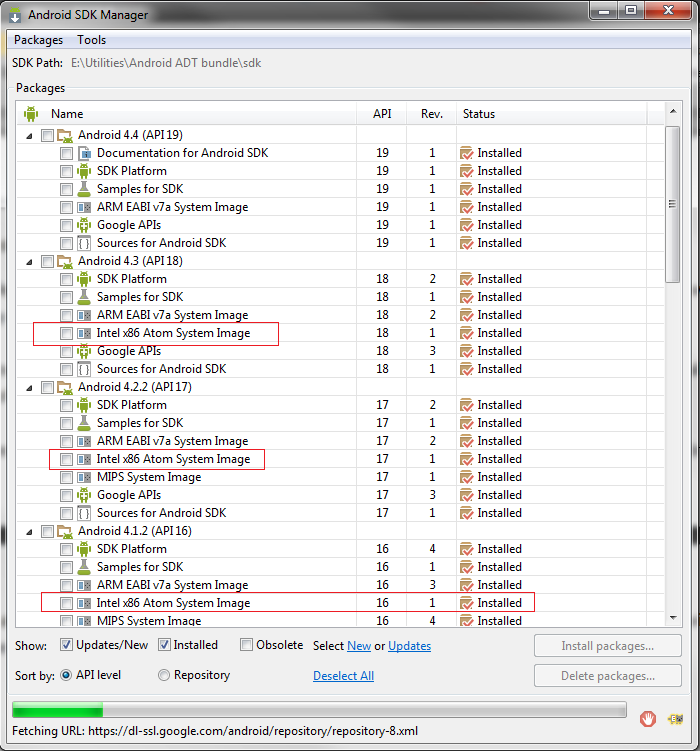
  2. Second we need to download Intel Atom (x86) system image for each Android version you need to use for testing.

  3. Third, download Intel x86 Emulator Accelerator (HAXM, for Mac and Windows only). This will enable virtual machine acceleration capabilities of the Intel CPU, from Android SDK manager --> tools. Or install it from Intel site.

  4. The SDK only copies the Intel HAXM executable on your machine, and it is up to you to install the executable.

    To install the Intel HAXM executable, search your hard drive for IntelHaxm.exe (or IntelHAXM.dmg on Mac OS X). If you left everything to default, it should be located at %Android_HOME%\sdk\extras\Intel\Hardware_Accelerated_Execution_Manager\IntelHaxm.exe.

    Intel HAXM only works in combination with one of the Intel® Atom™ processor x86 system images.


  5. In order to be able to install the Intel HAXM, you need to have Intel VT-x enabled in your BIOS, otherwise you will get an error like this during install.


    Enabling Intel VT (Virtualization Technology)


    How do I enable Intel VT in your machine BIOS?
    1. Boot into BIOS.
    2. Select "Config".
    3. Select "CPU".
    4. Press enter at "Intel Virtualization Technology".
    5. Select "Disable".
    6. Press F10 and select Yes.
    7. Boot into Windows then shutdown the system.
    8. Boot into BIOS again.
    9. Select "Enable" - Intel Virtualization Technology.
    10. Press F10 and select Yes.

  6. After installation goes successful, edit your AVD and chose Intel® Atom (x86).

  7. Finally Hit okay, then lunch your cake and definitely enjoy the speed.
VIP Note:
You could say that this level of speed should be sufficient. That may be true, but an issue with the Intel x86 images is that you do not get Google Apps, they only come with ARM images. This is important if you are testing an app that uses GMaps, or Google Play Services.

Friday, September 28, 2012

Apple: iPhone 5 comparing to iPhone 4s after trial in App Store SF, CA.

I have seen the "iPhone 5" and try it hardly in Apple San Francisco retail store, but i didn't admire with it i did't feel the Wow, In my comparing with iPhone 4s there is no difference between them except few things:
  1. Bigger screen 4" instead of 3.5" which is not the big deal.

  2. Processor A6 instead A5.

  3. Lighter than 4s by 40 Gm.

  4. All software features are in iOS 6 are the same for both phones.

  5. New EarPods witch could be bought separately and works with 4s.

lastly front camera is 1.4 m instead of VGA in 4s.

for me those changes is not the big deal that makes me changing my mind to buy iPhone 5.

Tuesday, January 24, 2012

Jailbreak: How to Jailbreak Your iPad 2 & iPhone4S (A5) Using Absinthe [5.0.1]

These are instructions on how to perform an untethered jailbreak of your iPad 2 & iPhone4S (A5) running iOS 5.0.1 using Absinthe for all platforms.
Warning***: Before you continue make sure to do a backup of your device in iTunes as you may lose your Camera Roll during this process.

Note that all above instructions applies to iPhone4S.
Step One
Download the latest version of Absinthe from:

Step Two
Double click to extract the downloaded archive and launch the Absinthe application.


Step Three
As prompted, connect your iPad 2 to the computer via USB. Make sure to remove any passcodes or VPN settings you've previously set.
Step Four
Click the Jailbreak button to begin
Step Five
The application will take you through several steps of the jailbreak: Sending initial data, waiting for reboot, waiting for device to finish booting, Preparing jailbreak data, and Sending payload data.

Step Six
You will be informed that the jailbreak is 'Almost done'.

Step Seven
On you device, locate the Absinthe icon and press it to complete your jailbreak. It could be on any home screen.


If the server is down and you get an Error establishing a database connection message then tap the Settings icon on your springboard and turn on VPN.


You will get a configuration error; however, after about a minute your device will reboot.


Once your device restarts you will be jailbroken with Cydia on the Springboard!


Leave your comments for any clarifications, 


Sunday, January 1, 2012

Jailbreak: Fix iBooks Configuration Error on Jailbroken iOS 5 device

“Greenpois0n Jailbreakers” who attempt to open digital ebooks purchased from the iBookstore are prompted with the following error message: There is a problem with the configuration of your iPhone. Please restore with iTunes and reinstall iBooks.


It seems that Apple has allegedly built a jailbreak checker into iOS 4.0 and above to see if someone’s iPhone has been jailbroken. If they found it hacked, then Apple blocks access to the content, like in the latest version of the iBooks app. 


If you find our previous hack to fix iBooks problem a bit tedious, you may install iBooks Fix Cydia app. Follow simple steps below.


Note: Ignore the error message! If you restore your device from iTunes, it removes the jailbreak.

How to Fix iBooks Error using “iBooks Fix” Cydia App


Step 1: Launch Cydia on your jailbroken device.

Step 2: Select Manage tab at the bottom of your iPhone screen and then select Sources.

Step 3: Select Edit and then select Add. Now enter a URL source. Type http://repo.insanelyi.com and select on Add Source. Once Cydia has added the source click on Return to Cydia button.


Step 4: Once the installation is completed. Search for iBooks Fix in Cydia and install it.


Step 5: Reboot your iPhone. You can now enjoy reading iBooks from iBookstore without being blocked by Apple.

Thursday, December 29, 2011

Jailbreak: Jailbreak iOS 5.0.1 with Redsn0w 0.9.10 beta 3 : Untethered

Pod2G, Chronic Dev Team and iPhone Dev Team released untethered jailbreak for iOS 5.0.1 The solution is available in two ways, one as package in Cydia called Corona that can be installed on a terminal that is already tethered jailbroken on iOS 5.0.1, Second way requires redsn0w jailbreak program directly to all those who are updated to iOS 5.0.1.

Requirements :
  • iPhone 3GS, iPhone 4, iPad 1, iPod Touch 3G, iPod Touch 4G
  • iOS 5.0.1 activated on your iDevice (iPhone unlockers should check pwnage tool).
Instructions :
  • Download redsn0w 0.9.10b3 for your operating system: Windows 7 / Vista | Windows XP | Mac and install latest version of iTunes.
  • Connected your iDevice to PC / Mac and launch redsn0w.
Windows 7 user note >>> right-click the executable, select Properties and open new menu, go toCompatibility and check Run this program in compatibility mode for  then select Windows XP , click Apply  and then OK. Now launch redsn0w.
  • Now select “Extras” then “Select IPSW” and browse for the iOS 5.0.1 IPSW file.
  • Click on “Jailbreak” then “Install Cydia”.
  • Follow the on-screen instructions to get your device into DFU mode.
  • Once done, your device will be rebooted and you’ll get a full untethered jailbreak on iOS 5.0.1.
For those who already have tethered jailbreak on their devices, you can run a jailbreak tweak Corona from Cydia. Follow our previous post : Corona : Untether your iOS 5.0.1 Tethered Jailbreak

Here are the official download links to iOS 5.0.1:
Leave a comment telling us how it worked for you.

Jailbreak: Corona Untether your iOS 5.0.1 Tethered Jailbreak

Pod2G with Chronic Dev Team Dev Team has launched iOS 5.0.1 untethered jailbreak solution for new and existing jailbreakers. If you are running on a fresh iOS 5.0.1 on your iDevice without a jailbreak, you can follow our guide to Jailbreak iOS 5.0.1 with Redsn0w 0.9.10 beta 1 : Untethered

If you are running on ​​iOS 5.0.1 with tethered jailbreak then you can simply install Corona, a patch through Cydia to convert your tethered jailbreak to untethered jailbreak. This package can be installed only by those who have already performed iOS 5.0.1 tethered jailbreak. Do not try this method for  iOS 5.0 tethered jailbreak.
To install Corona simply launch Cydia, Search for Corona. Install the Corona, Reboot your iDevice and that’s it.

Thursday, October 13, 2011

iOS: Official release of the new Apple iOS 5 software


Today Apple has officially released the new iOS 5 software update. The iOS 5 download links are below.  iOS 5 has over 200 new features including, messaging, notifications, and over the air updates. You can either update through iTunes or download iOS 5 IPSW and update.

Download iOS 5 Links

The download links for iOS 5 are below. After downloading you can open iTunes, shift-click on Update and select the iOS 5 IPSW file to update.
The iOS 5 update includes over 200 new features, including the following:

Notifications
§ Swipe from top of any screen to view notifications in one place with Notification Center
§ View notifications briefly at top of screen
§ View notifications from lock screen
§ Slide notification app icon to right on lockscreen to go directly to the app
iMessage
§ Send and receive unlimited text, photo, and video messages with other iOS 5 users
§ Track messages with delivery & read receitps
§ Group messaging and secure encryption
§ Works over cellular network and Wi-Fi
Note: Your browser may download it as a .zip file, if that happens just rename the .zip to .ipsw.

§ iOS 5 Download – iPad 2 (Wi-Fi) - iPad2,1_5.0_9A334_Restore.ipsw
§ iOS 5 Download – iPad 2 Wi-Fi + 3G (GSM) - iPad2,2_5.0_9A334_Restore.ipsw
§ iOS 5 Download – iPad 2 Wi-Fi + 3G (CDMA) - iPad2,3_5.0_9A334_Restore.ipsw
§ iOS 5 Download – iPad (Wi-Fi and Wi-Fi + 3G) - iPad1,1_5.0_9A334_Restore.ipsw
§ iOS 5 Download – iPhone 4 (GSM) - iPhone3,1_5.0_9A334_Restore.ipsw
§ iOS 5 Download – iPhone 4 (CDMA) - iPhone3,3_5.0_9A334_Restore.ipsw
§ iOS 5 Download – iPhone 4S - iPhone4,1_5.0_9A334_Restore.ipsw
§ iOS 5 Download – iPhone 3GS - iPhone2,1_5.0_9A334_Restore.ipsw
§ iOS 5 Download – iPod touch (4th generation) - iPod4,1_5.0_9A334_Restore.ipsw
§ iOS 5 Download – iPod touch (3rd generation) - iPod3,1_5.0_9A334_Restore.ipsw

Steps to install iOS 5 Download

1. Download iTunes 10.5 from here.
2. Download the iOS 5 firmware.
3. Install through iTunes by shift/option-clicking Update and selecting the IPSW file you downloaded.

Jailbreak iOS 5 Download Information

You can currently jailbreak iOS 5 (tethered only, which means you’ll need to jailbreak each time you reboot your device), but no untethered  jailbreak for iOS 5 has been released yet. You should wait for an untethered jailbreak to be released.